Shortcut keys
You can use a lot of useful keyboard shortcuts to navigate in WorkZone Client.
Use global shortcut keys
| Shortcut keys |
Description |
|
|---|---|---|
|
Main ribbon |
Detail ribbon |
|
|
Ctrl+S |
Ctrl+Shift +S |
Save your changes. |
|
Ctrl+R |
Ctrl+Shift+R |
Refresh a page. |
|
Alt+A |
Alt+Shift+A |
Open the drop-down list with all currently open tabs and select the Search bar. |
| - |
Ctrl+Shift+N |
Add item to a list. |
|
- |
p |
Toggle between opening and closing the Preview pane for the selected item. |
|
Esc |
Cancel your changes (in dialogs only). |
|
| Ctrl+Shift+F |
Create a new case search. |
|
|
Ctrl+Shift+D |
Create a new document search. |
|
|
Ctrl+Shift+C |
Create a new contact search. |
|
|
Enter |
Perform a search. |
|
|
Right Arrow key, Enter |
Expand the list for a selected item (if available). |
|
|
Left Arrow key |
Hide the list for a selected item (if available). |
|
|
Ctrl+G and select Case or Ctrl+O and select Case |
Open the Go to case dialog and perform a quick search for cases. | |
| Ctrl+G and select Document or Ctrl+O and select Document | Open the Go to document dialog and perform a quick search for documents. | |
| Ctrl+G and select Contact or Ctrl+O and select Contact | Open the Go to contact dialog and perform a quick search for contacts. |
|
Navigate between areas
You can navigate between items in the different areas of the user interface.
- Press Alt+Q to activate area selection for keyboard navigation.
Numbers and letters displayed in the user interface will indicate the area you can navigate to with the keyboard.Note: To deactivate area selection for keyboard navigation, mouse click or press Esc.
- Type a number or a letter of an area in which you want to navigate
with the keyboard.
 Example: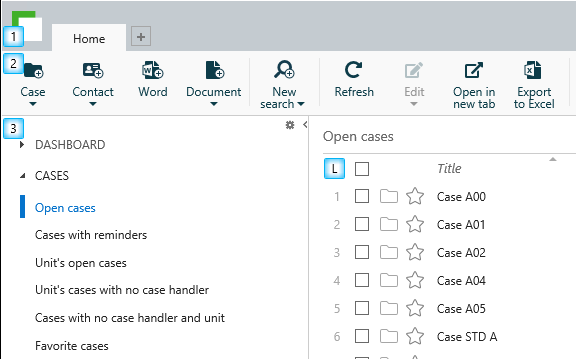
Press 3 to navigate to the navigation pane on the Home tab.
A color mark indicates that the selected area is active for keyboard navigation.
You can also navigate between different areas using the following keyboard shortcuts:
|
Shortcut keys |
Description |
|---|---|
|
Tab |
Move forward between fields in the selected area. |
|
Shift+Tab |
Move backward between fields in the selected area. |
|
Ctrl+Right Arrow key |
Select the next area on the page. If you have not selected any area yet, the first area on the page will be selected. |
|
Ctrl+Left Arrow key |
Select the previous area on the page. If you have not selected any area yet, the last area on the page will be selected. |
Navigate in an area
Use the following keyboard shortcuts to navigate between the items in the selected area:
|
Shortcut keys |
Description |
|---|---|
|
Up/Down Arrow keys |
Toggle between the vertically aligned items in the selected area. |
|
Right/Left Arrow keys |
Expand/hide a hierarchy. |
|
Enter |
Activate the selected button or item. |
Navigate in lists
Use the following keyboard shortcuts to navigate in lists:
|
Shortcut keys |
Description |
|---|---|
|
Down Arrow key |
Select next list item. |
|
Up Arrow key |
Select previous list item. |
|
Page Down |
Display the next page of the list. |
|
Page Up |
Display the previous page of the list. |
|
Enter |
Open the selected list item in a new tab. |
|
P |
Display/hide the Preview pane for the selected list item. |
|
Ctrl+A |
Select/deselect all list items on the current page. |
|
Home |
Select the first list item on the current page. |
|
End |
Select the last list item on the current page. |
|
Ctrl+Down Arrow key |
Highlight the next list item. Already selected list items will remain selected. |
|
Ctrl+Up Arrow key |
Highlight the previous list item. Already selected list items will remain selected. |
|
Ctrl+Space |
Select highlighted list items. |
|
Ctrl+Home |
Go to the first page. |
|
Ctrl+End |
Go to the last page. |
|
Shift+Down Arrow key |
Select the next list item. Already selected list items will remain selected. |
|
Shift+Up Arrow key |
Select the previous list item. Already selected list items will remain selected. |
Tip: You can also navigate in the lists displayed in the Preview pane or in the detail lists on a detail page.
Navigate in the dialogs
Use the following keyboard shortcuts to navigate in the dialogs:
|
Shortcut keys |
Description |
|---|---|
|
Alt+Q |
Activate area selection for keyboard navigation. |
|
Tab |
Move forward between fields or buttons in the selected area of a dialog. |
|
Shift+Tab |
Move backward between fields or buttons in the selected area of a dialog. |
|
Ctrl+Right Arrow key |
Selects the next area on the page. If you have not selected any area yet, the first area in a dialog will be selected. |
|
Ctrl+Left Arrow key |
Selects the previous area on the page. If you have not selected any area yet, the last area in a page will be selected. |
|
Ctrl+S |
Save your changes and close the dialog (this works the same as clicking Save or |
|
Esc |
|
|
Down/Up Arrow key (for fields with selectable items) |
Open a drop-down list for the current field. |
In the Add case/document/contact references dialogs, you can also use the following keyboard shortcuts:
|
Shortcut keys |
Description |
|---|---|
|
Ctrl+Shift+Down Arrow key |
Display the Advanced search fields. |
|
Ctrl+Shift+Up Arrow key |
Hide the Advanced search fields. |
|
Enter |
When the focus is set on the search form elements: Perform a search. |
|
Enter |
|
|
Down/Up Arrow key (for lists) |
|
In search pages, forms and dialogs with fields that contain drop-down lists:
|
Shortcut keys |
Description |
|---|---|
|
Arrow key |
Open a drop-down list for current field (if available). |
|
Space |
Opens a drop-down list for current field (if available). |
|
Enter |
Start search based on the search criteria currently specified in the search page or dialog. To prevent searching the entire database and thereby negatively impacting performance, pressing Enter in a search page with no defined criteria will not start the search. |
Set a date
You can set or edit a date on a case, document, or contact detail page and in the search request with a date criteria.
When you set or edit a date, you can:
- Type the exact date
- Select the date from the calendar
- Specify a time period in relation to the current moment. For example, + 2 weeks, - 4 hours, and click Save
 .
.
- Or -
- Or -
To specify the time period, use the following syntax:
|
Possible values |
Meaning |
|---|---|
|
+ |
Add a date in the future |
|
- |
Add a date in the past |
|
Å Y |
Year |
|
Q |
Quarter (3 months) |
|
M |
Month |
|
U W |
Week |
|
D |
Day |
|
T H |
Hour |
|
MI |
Minute |
|
S |
Second |
Example:
+4u: Set a date of 4 weeks after the current day.
-1y: Set a date of 1 year before the current day.
- You can only enter a single value for each date field, for example,
+7w. Do not use multiple values, for example,+1m3w. - The default time period is
day. If you enter a number without the time value, WorkZone will consider it as a day. Thus,+6equals+6d.