Troubleshooting
Click an issue below to see the solution or workaround.
 In Edge, while using the WorkZone for Office functionality integrated in WorkZone Client, you may see the message "Did you mean to switch apps?".
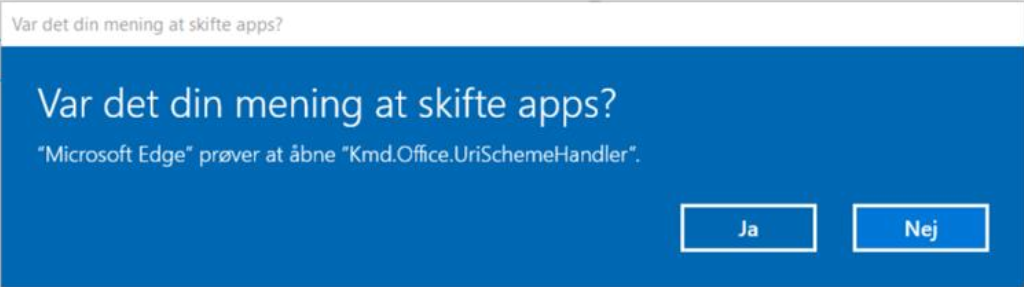
For example, it can appear when users share documents. The message appears because Edge encounters an unknown WorkZone handler. To avoid the message, you must add the following registry settings:
[HKEY_CURRENT_USER\Software\Microsoft\Internet Explorer\ProtocolExecute\wzfo]
“WarnOnOpen”=dword:00000000

While using WorkZone 365 in Internet Explorer, Microsoft Edge, or desktop version, you click Help, but user guide is not opened.
Workaround: Open the user guide in Chrome.
Solution: Add https://docs.workzone.kmd.net to the local intranet zone:
- Click
 Tools in Internet Explorer and select Internet options.
 - On the Security tab, click Local intranet and then Sites.
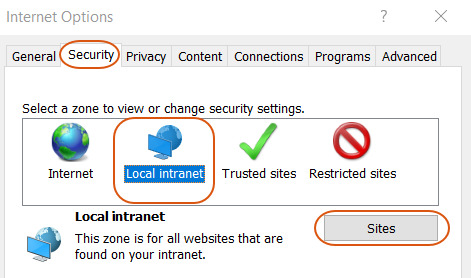
- Click Advanced.
- Type in
https://docs.workzone.kmd.net, and click Add.
A meeting was sent to a group, but its contacts are not saved as parties on case.
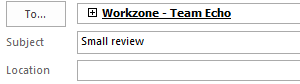
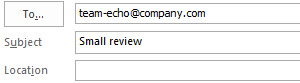
Sometimes Outlook doesn't parse a group email as a group. In this case, the meeting is sent, but contacts cannot be extracted by WorkZone. To solve this issue, ensure that the group email is converted to the group before sending the meeting. See examples:
Group email converted to the group:
Group email not converted to the group:
When you save the Process view list, you see the following notice:
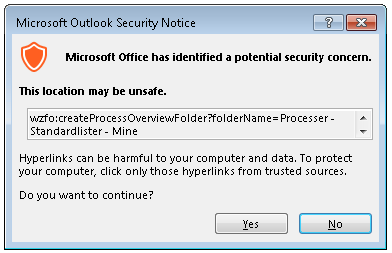
To fix this, you must add the following registry settings:
Microsoft Office 2016:
[HKEY_CURRENT_USER\Software\Policies\Microsoft\Office\16.0\Common\Security\Trusted Protocols\All Applications\wzfo:]
Note: Value is not mandatory for this key.
In Excel 2016 subscription 365, if you click Cancel for the second time, the Excel document is closed without the confirmation message.
This is a specific behavior of Microsoft Office 2016, subscription 365.
You see a COMException when the FQDN (fully qualified domain name) host is used
- If you open a previous version of a Microsoft Office document in the File > Cases & Documents > Manage versions section
- or - - If you open a non-Microsoft Office document in Outlook overview and the https protocol is used.
The COMException is caused by a known issue in WebDAV. WebDAV is used for opening documents. To fix the exception, proceed with the instructions described in the WorkZone Explorer User guide (see Automatic Authentication of users fails when accessing WorkZone Explorer through an FQDN host).
You may experience a situation when a WorkZone for Office functionality does not work for no clear reason. Then the reason might be short default timeouts that expire due to slow network connection.
List of issues that may be caused by short timeouts:
- Smart tasks are in the offline state.
- The Start Process button is dimmed.
- API methods (for example, opening document, creating a new email and others) do not work.
- The WorkZone for Office add-in is not ready to process the requests.
To fix these issues, you need to increase the default timeouts:
- Run
regedit.exe. - Go to:
- Set new values for the relevant registry keys.
HKEY_LOCAL_MACHINE\SOFTWARE\ScanJour\Clients\Options
|
Registry key |
Default value (ms) |
Definition |
|
SmartTaskOfflineTimeOut |
3000 |
When a user opens a smart task, the WorkZone for Office client should connect to the WorkZone Process server during the time specified here. If the time limitation runs out, a notification with an issue description appears. |
|
StartProcessButtonTimeOut |
3000 |
WorkZone for Office should connect to the WorkZone Process server during the time specified here. If the time limit runs out, the Start Process button is dimmed, and a user sees a tool tip that notifies about the issue. |
|
LocalServiceConnectionTimeout |
30 000 |
When ActiveX sends a request to WorkZone for Office, the WCF service client should connect to the WCF service server during the time specified here. |
|
LocalServiceOperationTimeout |
600 000 |
When ActiveX sends a request to , the WorkZone for Office add-in and the WCF service should execute the request during the time specified here. |
|
OpenApplicationTimeout |
30 000 |
When a user launches the WorkZone add-in, the add-in should get ready during the time specified here. |
Issues in Microsoft Outlook 2016 appeared after installing the October 2017 Microsoft Outlook security update (patches KB 4011178 and KB 4011162 respectively).
The security update affects WorkZone for Office case, document and process overview in Microsoft Outlook. To fix this, you must add the following registry settings:
Microsoft Outlook 2016:
[HKEY_CURRENT_USER\Software\Microsoft\Office\16.0\Outlook\Security] "EnableRoamingFolderHomepages"=dword:00000001
Find more information here.
Save on Case does not work for appointments and meetings created out of WorkZone for Office.
Save on case crashes if the DisableCrossAccountCopy registry setting exists in the registry list. Find more information here and delete the registry setting if it is worthwhile for your WorkZone installation.