Text extraction

|
||
|
Document |
Prerequisite: >To edit text extraction methods, you must be assigned the CONFIGADM access code.
About text extraction
Text extraction is used in a WorkZone environment for extracting text from various types of documents, including OCR. The text is then used for the WorkZone search functionality.
You can select a text extractor among two options:
- Oracle text extractor.
- WorkZone text extractor. To use it, enable the Use WorkZone text extractor toggle key in the top-right corner.
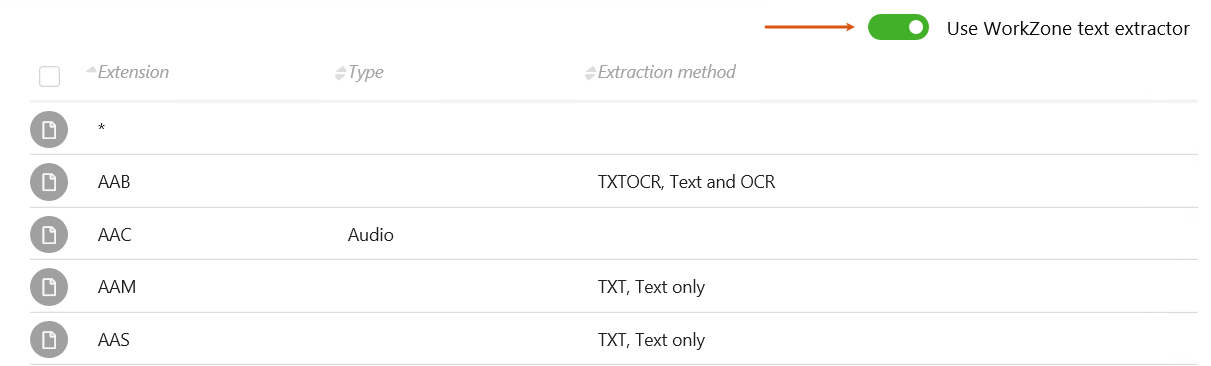
Edit text extraction method
Note: You can edit text extraction methods only for the WorkZone text extractor.
- On the main page, select Document.
- Click the Text extraction tab.
Edit text extraction method for a single file extension
- Point to the file extension that you need. A menu bar appears.
- Click
 Edit.
Edit. - In the Edit text extraction method dialog box, select a text extraction method:
- Text only – Only extracts from text formats.
- Text and OCR – Extracts from text formats and images, for example, scanned documents.
- Click Save.
Edit text extraction method for multiple file extensions
- Click the icon
 next to the file extension that you want to edit. The item is then selected
  .
. - Select other file types that you want to edit one by one.
- Click
 Edit in the bottom-right corner of the page.
 - In the Edit text extraction method dialog box, select a text extraction method:
- <Empty> – Clears the Extraction method cells for the selected extensions and applies the default text extraction method – Text and OCR.
- Text only – Only extracts from text formats.
- Text and OCR – Extracts text from text and images, for example, scanned documents.
- Click Save.
Tip: To select all file types, select the top check box in the column of icons.