Troubleshooting
Click an issue below to see the solution or workaround.
WorkZone Process
 Error when entering an Exchange Web Service URL
The error message “Failed to connect to the Exchange Web Service using service account” might be displayed when you configure WorkZone Process and get to the point where you enter the Exchange Web Services URL. At this point you have already completed the verification step "Verify access to Exchange server and oData" as part of the configuration prerequisites. However, the error occurs because the current service account user does not have a valid mailbox.
To resolve the issue, set up a mailbox for the service account user.
Problem with installation of a package with the same version number
If you install a package with the same version number that is already installed, and workflows are running, you may experience problems downloading the new DLL files in the Dependencies folder
To solve the problem, stop the WzpSvc app pool, and then delete all files in the Dependencies folder, which is located in (C:\Program Files (x86)\KMD\WorkZone\Process\Web\Services\Dependencies). In some cases, you may also have to stop the ScanJour Process Mail Notification Agent and the ScanJour Process Push Notification Agent in Windows Services.
Users do not receive smartmails
Please see Troubleshooting in the WorkZone Operations Guide.
Error when WorkZone cannot find a retention policy with the retention policy code NONE
When WorkZone cannot find a retention policy with the retention policy code NONE in the Retention Policies register in the active domain, WorkZone fails with the error:
{"lang":"da-DK","value":"Feltet 'Bevaringskode' (db name = retention_policy_code) validerer mod register 'retention_policy', men system n\u00f8glen NONE findes ikke i registeret."}
WorkZone Process requires that this retention policy exists, and it must not have an end date.
To resolve this issue, you need to change the retention policy.
-
In WorkZone Configurator, go to Retention > Retention policies and edit the policy with the NONE code.
Alternatively, you can configure the policy directly in the database in the retention_policy table.
wzp-init container fails when loading packages
The wzp-init container fails when loading packages and returns the error:
ERROR: Package loading failed. Message: System.Data.Services.Client.DataServiceRequestException: An error occurred while
processing this request. ---> System.Data.Services.Client.DataServiceClientException: {"odata.error":{"code":"UNKNOWN.0
;NO_TERM_SPECIFIED","message":{"lang":"en-GB","value":"Sagsgruppen tillader ikke sagsoprettelser."},"innererror":{"message":"Sagsgruppen tillader ikke sagsoprettelser.","type":"Scanjour.ScanjourComException"
This error occurs if the SJ-TEMP case group does not exist or is not configured to allow case creation. WorkZone Process creates cases in the SJ-TEMP case group. The exact value for the SJ-TEMP case group is resolved by reading the DefaultFileClass_Value column in the WzExplorers entity. You can view and configure this setting in WorkZone Configurator > Explorer. SJ-TEMP is the default case group.
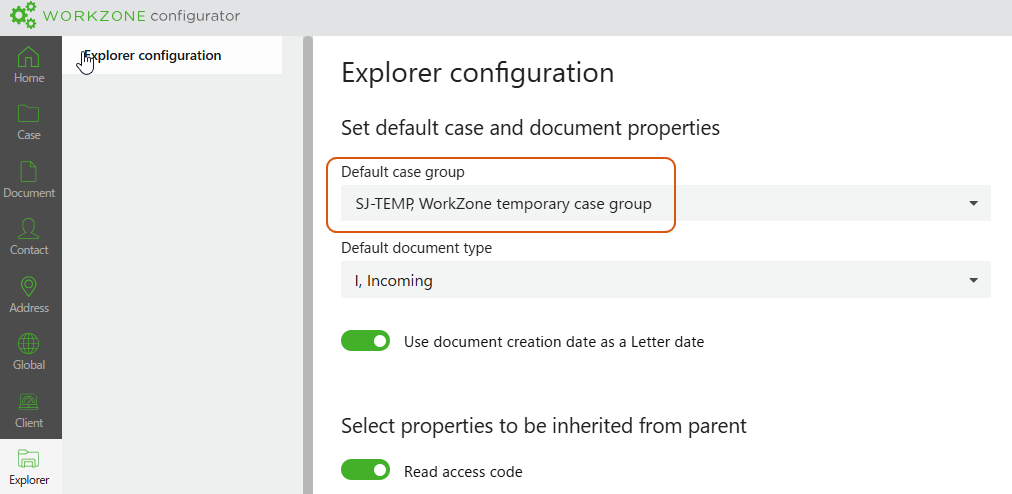
To resolve the issue, ensure that the SJ-TEMP exists and that case creation is enabled.
-
In WorkZone Configurator, go to Taxonomy > Classification scheme.
-
Locate and Double-click the SJ-SYSTEM case group. By default, SJ-TEMP is a child case group.
-
Edit the SJ_TEMP case group. Enable Case creation and remove any end date.
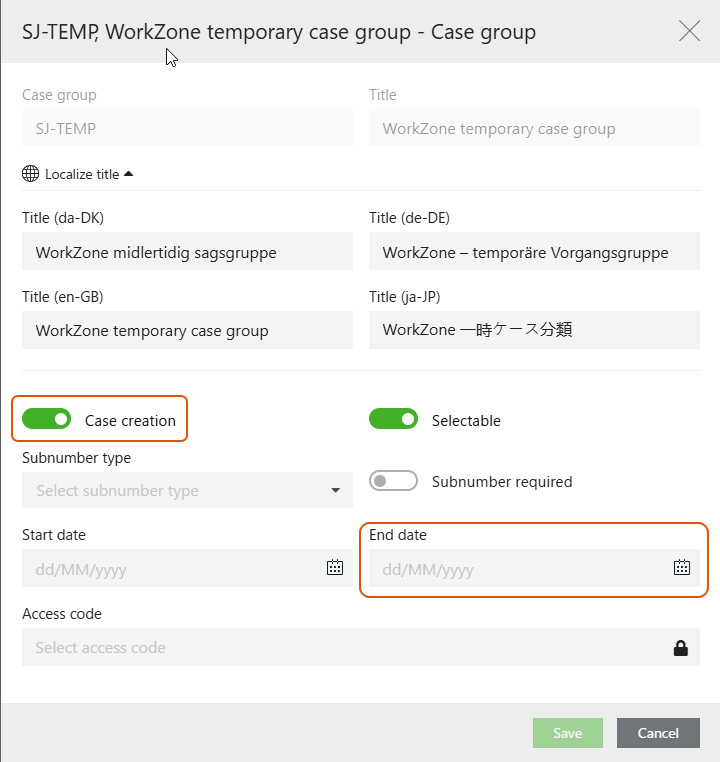
Alternatively, you can configure case group in the FCS table. It must have an entry for File_Class SJ-TEMP with no End_Date.
wzp-init container fails when the TXT file extension is not allowed
The wzp-init container fails and returns the error:
"Source": "EventLog","LogEntry": {"EventSource": "Scanjour.Process.Configurator","Time": "2026-01-29T09:44:52.000Z","Channel": "Application","Level": "Warning","EventId": 0,"Message": "Basis package is not loaded: Exit code indicates unsuccessful operation. Process output: \r\nERROR: Package loading failed. Message: System.Data.Services.Client.DataServiceRequestException: An error occurred while processing this request. ---> System.Data.Services.Client.DataServiceClientException: {\"odata.error\":{\"code\":\"\",\"message\":{\"lang\":\"en-US\",\"value\":\"This WorkZone system does not accept documents with extension: TXT.\"}}}\r\n
WorkZone Process requires that the file type .txt is allowed.
To resolve the issue, enable the txt file type.
-
In WorkZone Configurator, go to Document > Supported file types.
-
Find the txt file extension on the list and click
 Edit and turn on Allowed.
Alternatively, you can set it in the database by setting Disallowed to either null or 'N' (false) in the document_format table for each of the required file extensions.
WorkZone PDF
General troubleshooting flow
Note: These steps are not interdependent and can be performed in any order.
| Issue | DB Config | PDF Engine | PDF Crawler |
|---|---|---|---|
|
Any issues |
Check the Microsoft Windows Event Viewer form. See The Event Viewer. |
||
|
Installation fails |
Run silent installation with logging enabled. See Install silently. |
||
|
Database is not accessible |
|||
|
PDF Engine web service is not accessible (error 500) |
Verify the installation in IIS. |
||
|
Database errors |
Check the tables:
|
Check the tables:
|
Check the tables:
|
|
You get an unexpected result |
|
Check the corresponding website's settings in the Administrator's Guide for WorkZone Configurator. |
Check the corresponding Crawler settings in the Administrator's Guide for WorkZone Configurator. |
|
Access errors |
Check whether database configuration settings are correct. See Perform database configuration. |
Verify the authentication settings in IIS. See Verify the installation. |
|
|
A particular document cannot be converted |
|
Enable logging in WorkZone PDF Crawler. See WorkZone PDF Crawler logs. Analyze the logs. |
|
|
Other issues |
If troubleshooting does not solve the issue, please create a support case with KMD support and include error messages, log files, or document files depending on the issue. |
||
See also:
Troubleshooting in the WorkZone PDF Administrator Guide.
Error when loading report templates and saving documents in PDF format
When loading report templates and saving documents in PDF format, the following error occurs (example):
{"Source": "File","LogEntry": {"Logline": "2025-12-22 11:01:01.583 +00:00 [Error] { Type: "KMD.WorkZone.Common.Exceptions.UnexpectedReportDeploymentException", Message: "An unexpected error has occurred when deploying report Agenda, 2600101700.", Source: "Setup", StackTrace: " at KMD.WorkZone.Installer.DbConfigSetupAction.DeployTemplates(ODataService odata)","FileName": "wzpdf.init.log"},"SchemaVersion":"1.0.0"}}
WorkZone PDF requires that the file types .pdf, .docx, .xlsx, .html, and .pbix are allowed to load report templates and save documents in PDF format.
To resolve the issue, enable the required file types.
-
In WorkZone Configurator, go to Document > Supported file types.
-
Find the file extension on the list and click
Edit and turn on Allowed.
Alternatively, you can set it in the database by setting Disallowed to either null or 'N' (false) in the document_format table for each of the required file extensions.
Error when the wzpdf-init container attemps to update report templates
The following error occurs when report templates are locked:
{"Source": "File","LogEntry": {"Logline": " Document is locked by: 'SYSADM'. The current lock timeout is: 2026-01-29 10:03:40. The current lock token is: 8482adad-c8d0-4038-8825-415ad29758e8.","FileName": "wzpdf.init.log"},"SchemaVersion":"1.0.0"}
If the organization uses standard reports, you can remove the template records directly in the database by selecting the RecordKey from entries in the ReportRecords table.
If the organization uses custom reports, please contact your operations provider for assistance with releasing the lock on the report templates.