Export and import WorkZone configurations
Prerequisite:
- To export configurations, you must be assigned the CONFIGADM access code.
- To import configurations, you must be assigned the CONFIGADM and DATAADM access codes.
About WorkZone configurations
A configuration includes particular settings that administrator has applied for WorkZone products in WorkZone Configurator. Export and import functionality is designed to test any changes before applying them to real environments. Therefore, you can install WorkZone Configurator on the test environment, play with different settings, and test them with no risks. When you are sure that settings are correct, export them to the *.json file and import the file on the server with real WorkZone installations.
Export configuration
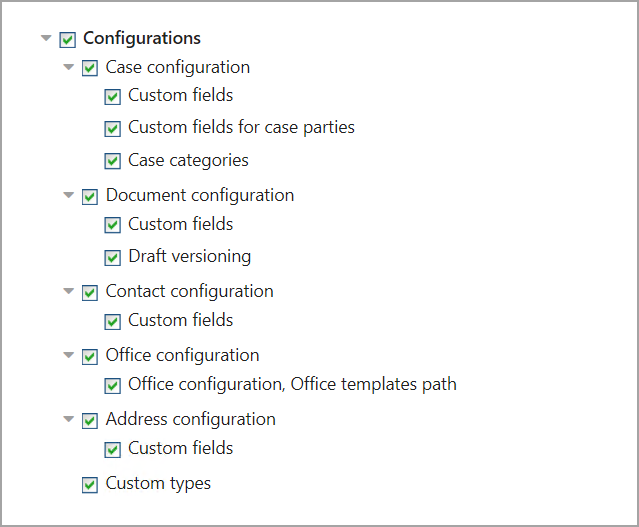
The full list of available settings to export is displayed on the Export configuration tab. This list will grow with each new release.
- Case configuration:
- Custom fields
- Custom fields for case parties
- Case categories
- Document configuration:
- Custom fields
- Draft versioning
- Contact configuration:
- Custom fields
- Office configuration:
- Office configuration, Office templates path
- Address configuration:
- Custom fields
- Custom types
To export the settings, proceed with the following steps:
- On the start page, click Export and Import.
- Select the Export configuration tab. You can see available settings grouped by case, document, contact, address and WorkZone products.
- Select relevant check boxes to export settings to the *.json file.
- Click Export.
The *.json file is saved to the place defined in your browser settings.
Import configuration
In WorkZone Configurator, importing configurations is very flexible. You can import configurations from the file fully or partially. Moreover, you can decide whether to keep the existing configuration or overwrite it with the configuration from the file for each individual element (for example, for a custom field).
- On the start page, click Export and Import.
- Select the Import configuration tab.
- To select a file with configurations, click
 and double-click the needed *.json file.
 - The list of available configurations from the file is displayed. By default, all of them are selected. Clear check boxes if you don't want to import specific configurations.
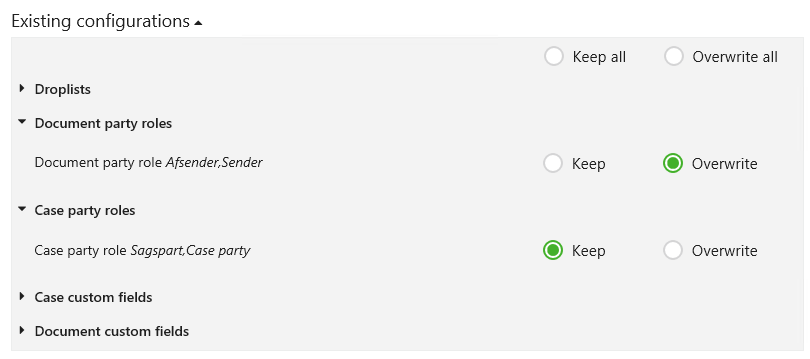
- Click Verify to ensure correct appliance of configurations. WorkZone Configurator compares existing configuration with the configuration from the file, applies genuine new configurations and suggests you to resolve conflicts, if any.
- If you see a list of existing configurations, click Keep to remain the existing configuration, or click Overwrite to apply configuration from the file.
- When you have made your choices, click Import. Selected configurations are then applied.
- Optionally, click View log to see more detailed information on import.