Running WorkZone on Azure
WorkZone in an Azure infrastructure
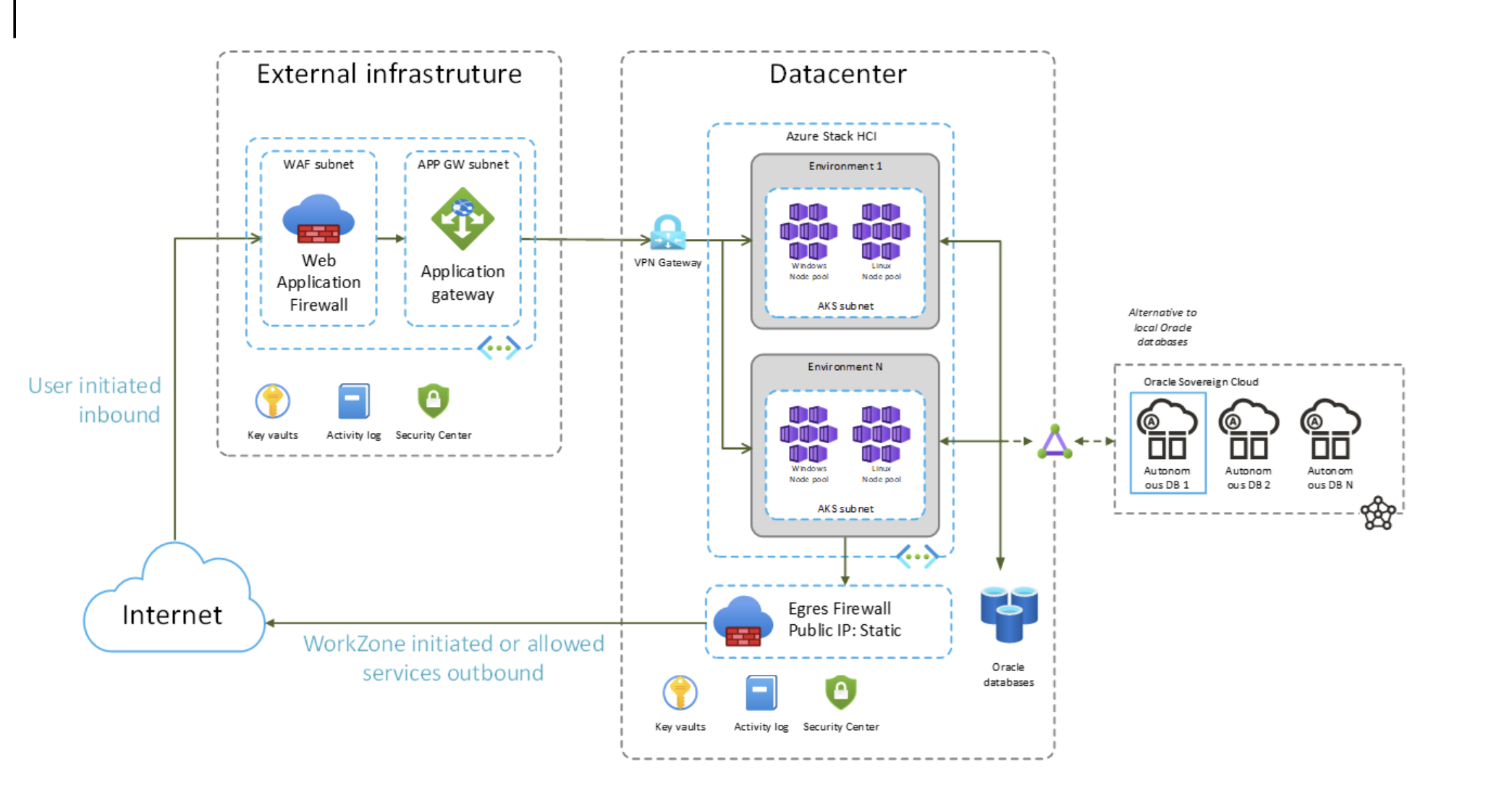
Deploy WorkZone in Azure AKS
Setting up WorkZone in Azure AKS requires the following basic steps. More advanced options will depend on your local requirements.
You must have an active Azure subscription to do this.
Prerequisite: You must have an Azure tenant and a WorkZone App Registration for the WorkZone instance in this tenant, see Register WorkZone apps in Azure. In addition, a SCIMADMIN user must exist in the tenant.
Create a multitenant Entra ID application for access to WorkZone production ACR from you Azure tenant
- You should create a multitenant Entra ID application because AKS and ACR are in different subscriptions.
- For direct service to service deployment flows, it may be relevant to have headless access to the kmdworkzone registry. This access must be requested independently and requires a service principal to be created between the two tenants.
- Navigate to the Azure portal.
- Select Microsoft Entra ID (formerly known as Azure Active Directory).
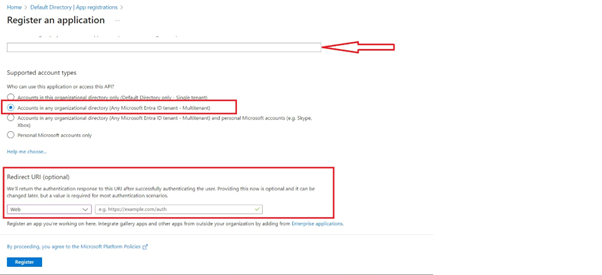
- Select App registration > New registration.
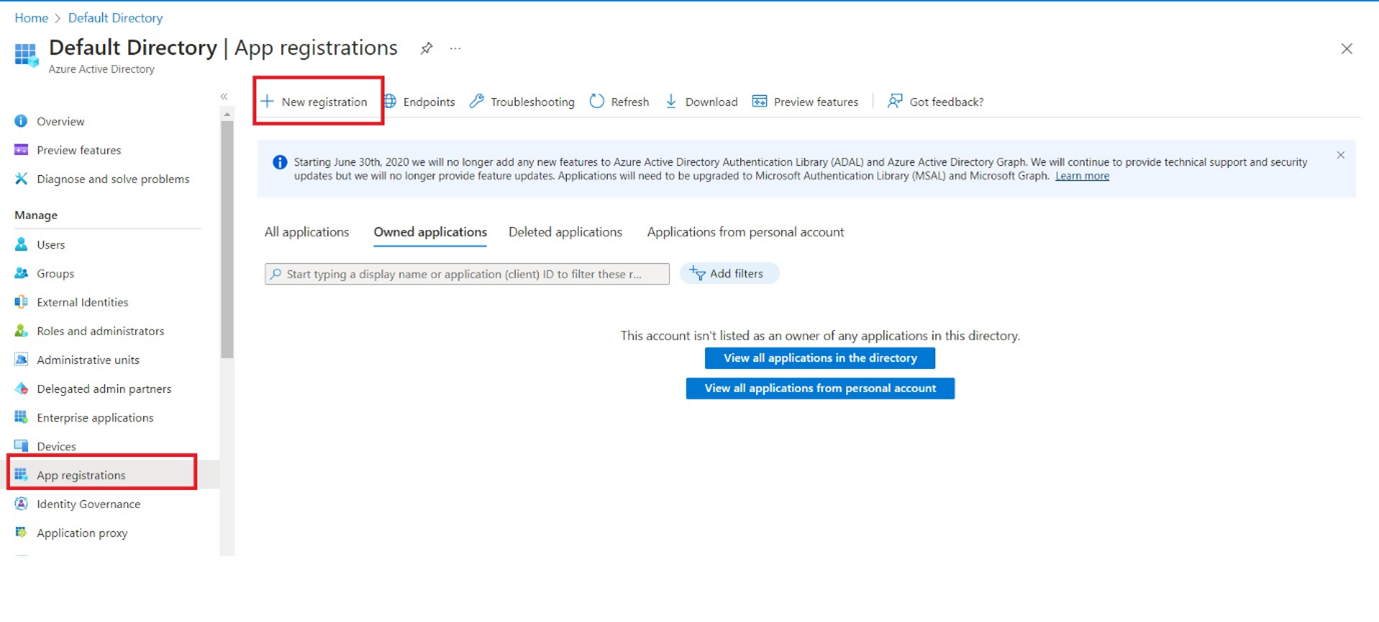
- Enter a name for the Application (the service principal name).
- Under Supported account types, select Accounts in any organizational directory.
- For Redirect URI, select Web and enter any URL. If you have an authentication endpoint for your organization that you want to use, you can provide it here. Otherwise you can enter
https://example.com/auth. - Select Register.
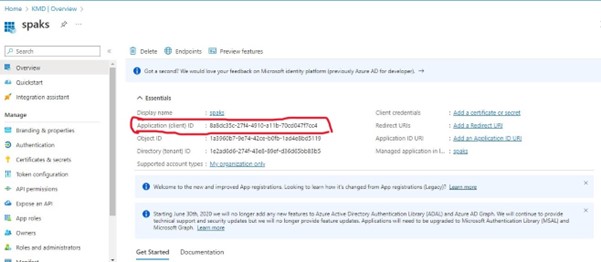
- Copy the Application (client) ID value.
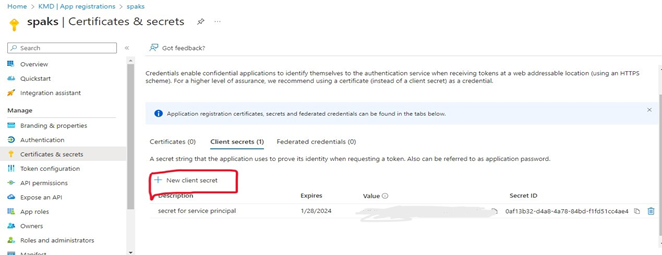
- In the Certificates & secrets under Client secrets, select +New client secret.
- Enter a Description, such as Secret for service principal, and click Add.
- Note the value of the client secret, as you will need it to update the AKS cluster's service principal.
Create an Azure AKS instance
Create AKS and connect ACR with AKS
-
Create a new service principal in your Azure Entra ID tenant to authenticate with the AKS Cluster. See Create a multitenant Entra ID application for access to WorkZone production ACR from you Azure tenant.
-
Share your service principal name Application (client) ID and Redirect URL with your WorkZone contact to get access to the Registry.
Note: Remember to monitor the expiration of the secret because the expiration may cause the Azure AKS cluster to stop. -
Log in to Azure portal.
#Azure login on specific tenantaz login --tenant <Tenant domain name>#Set Active Subscriptionaz account set --subscription <Subscription ID> -
Create a resources group.
- Name: workzone
- Region: (Europe) West Europe
-
Create Azure Kubernetes Service (AKS).
az aks create --resource-group workzone --name workzone --network-plugin Azure --service-principal "<REGISTRY SPN APPLICATION/CLIENT ID>" --client-secret "<REGISTRY SECRET VALUE>" --generate-ssh-key
- Cluster preset config: Dev/Test
- Name: workzone
- AKS pricing Tier: Free
- Name: Linux
- Mode: System
- Zones: 1, 2, 3
- Size: Refer to the Node Sizing guide and Azure Node Guide for selecting the right NODE server (for example, Standard_D2s_v3)
- Min-Max node count: 1-3
- Name: Windows
- Mode: User
- Zones: 1, 2, 3
- Size: Refer to the Node Sizing guide and Azure Node Guide for selecting the right NODE server (for example, Standard_D4s_v3)
- Min-Max node count: 1-2
- Currently the Windows Node pool has to be Windows 2019. Support for Windows 2022 will be available later.
Basics:
Node pools:
#Create Nodepool
az aks nodepool add --resource-group <Ressource Group Name> --cluster-name <AKS Cluster Name> --os-type Windows --os-sku Windows2019 --name winnp --node-count 1
Prerequisite: A Windows node pool in AKS is required to run the Windows containers.
Update AKS with the Azure Entra ID application secret
Sometimes, it is required to update the AKS instance after creation.
- Update AKS cluster with service principal credentials.
az aks update-credentials \
	--resource-group myResourceGroup \
	--name myAKSCluster \
	--reset-service-principal \
	--service-principal "$SP_ID" \
	--client-secret "${SP_SECRET}"
- Update AKS cluster with new Azure Entra ID application credentials.
az aks update-credentials \
	--resource-group MyResourceGroup \
	--name MyAKScluster \
	--reset-aad \
	--aad-server-app-id <SERVER APPLICATION ID> \
	--aad-server-app-secret <SERVER APPLICATION SECRET> \
	--aad-client-app-id <CLIENT APPLICATION ID>
For more information, see the Microsoft article Pull images from a container registry to an AKS cluster in a different Microsoft Entra tenant.
Creating Azure Key Vault for WorkZone
WorkZone requires a long list of secrets in order to run. For managing these, you need to create an Azure Key Vault on the Azure Tenant that you are running.
You can base your Key Vault on this ARM Template: