Known issues
Click an issue below to see a description and a possible workaround.
 After upgrading the WorkZone products to next version, the Meeting module disappears from WorkZone Mobile (Legacy).
To solve the issue, advise the user to re-log in on WorkZone Mobile (Legacy).
A delay during the WorkZone for Intune loading and switching between tasks
- When you log in for the first time after the WorkZone for Intune installation, the authentication delay might take around 3 minutes.
- When you have selected another task, you might see the previous task on your screen for around 20 seconds more.
This is the expected behavior since the system requires some time to process these actions. Please wait until it has finished.
WorkZone Mobile (Legacy) app for Intune stops connecting
After some time the WorkZone Mobile (Legacy) application stops connecting, returning the “Not connected/Ikke tilsluttet” error message. Attempts to restart the application result with the “Connect/Tilslut” error message.
Check the Wi-Fi settings on user's device. Ensure that the user uses your regular internet connection (that is, the connection previously used to successfully connect to WorkZone).
Office app fails to get the WorkZone documents (unmanaged App Store iOS version only)
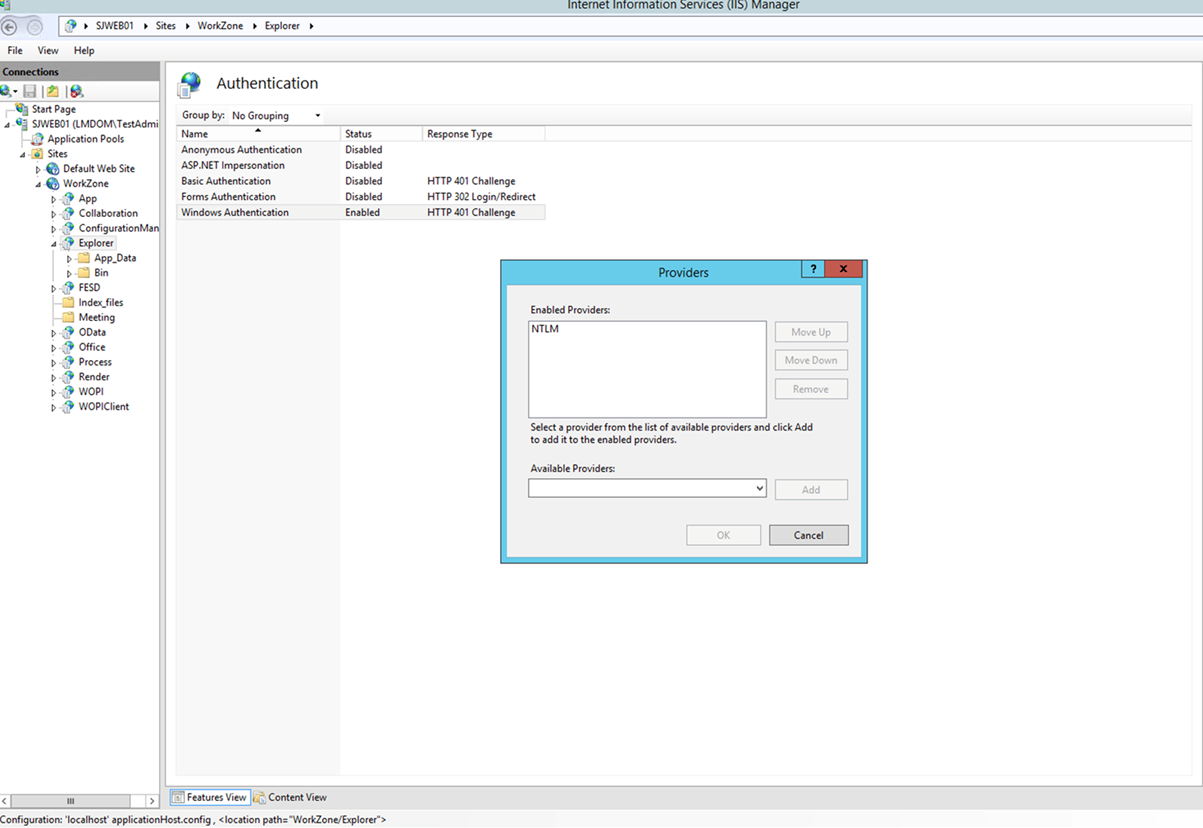
If Office app fails to open the WorkZone documents, advise the user to reset the Office app from the device settings. If the issue persists, verify that WorkZone Explorer Authentication providers (located under Internet Information (IIS) Manager > Sites > WorkZone > Explorer > Windows Authentication > Providers) only contain NTLM.
Documents cannot be exported if the file name is too long
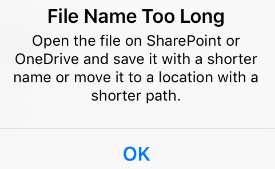
When users click  in the document viewer, they may get the following error message: