Publishing the WorkZone Mobile (New) for Android on Microsoft Intune (Azure Portal)
Prerequisite:
- Internal domain users are synced to Entra ID and user groups with access to WorkZone Mobile (New) exist.
- Conditional access policies are created. See Set up security and access from mobile devices.
- Intune is set up so that mobile devices are managed and the devices are marked as "in compliance" by Intune.
- Managed Google Play account must be synchronized:
Log in to the Microsoft Azure portal.
Add Microsoft Authenticator, Intune Managed Browser, and the Microsoft Office apps
Optionally, you can add the Microsoft Authenticator app, the Intune Managed Browser app, and a number of Microsoft Office apps to improve user experience with the WorkZone Mobile (New).
- Go to Microsoft Intune.
- Click Apps > Platforms > Android.
- Click Create. In the App type field, select Store app > Managed Google Play.
- Click Select in the menu.
- Type Microsoft Authenticator into the search field and select Microsoft Authenticator from the available options.
- Click Select.
- Type Microsoft Edge into the search field and select the application.
- Click Select.
- Type Microsoft into the search field and select the applications that you want to add.
- Click Select.
- Click Sync.
- From the app list, select individual application, and click Properties under Manage.
- Click Assignments, and select the Entra ID groups or users who should get WorkZone Mobile (New) in their company portal.
- Click Save.
Add the WorkZone Mobile (New) app
- Go to Microsoft Intune.
- Click Apps > Platforms > Android.
- Click Create. In the App type field, select Store app > Managed Google Play.
- Click Select.
- Type WorkZone into the search field and select WorkZone published by KMD A/S.
- Click Select.
- Click Sync.
- From the app list, select WorkZone Mobile, and click Properties under Manage.
- Click Assignments, and select the Entra ID groups or users who should get WorkZone Mobile (New) in their company portal.
- Click Save.
For more information, see Microsoft articles:
- Add Managed Google Play apps to Android Enterprise devices with Intune
- Assign apps to groups with Microsoft Intune
Create an app configuration policy
WorkZone Mobile (New) supports pushing certain connection settings to the mobile devices through Intune. This is done by creating an app configuration policy and assigning the policy to the app users.
- In Intune, click Apps > Managed Apps > Configuration.
- Click Create > Managed devices, and fill in the required information (see example below).
- In the Targeted app, select WorkZone.
- Click OK.
- Click Configuration settings and select Enter JSON data in the Configuration settings format list. Adjust your data.
Copy
{
  "kind": "androidenterprise#managedConfiguration",
  "productId": "app:dk.kmd.kmd_workzone",
  "managedProperty":
  [
    {
      "key": "mamserverurl",
      "valueString": "[URL to your WorkZone server]"
    },
    {
      "key": "mamauthorityurl",
      "valueString": "[Authority URL to your WorkZone server]"
    },
    {
      "key": "mamclientid",
      "valueString": "[ClientID]"
    },
    {
      "key": "mamuserprincipalname",
      "valueString": "{{userprincipalname}}"
    }
  ]
}
Tip:
You can find the ClientID under your WorkZone application registration in Azure Portal, where it is called Application ID. See Identify and check your WorkZone apps and registrations.
 Example: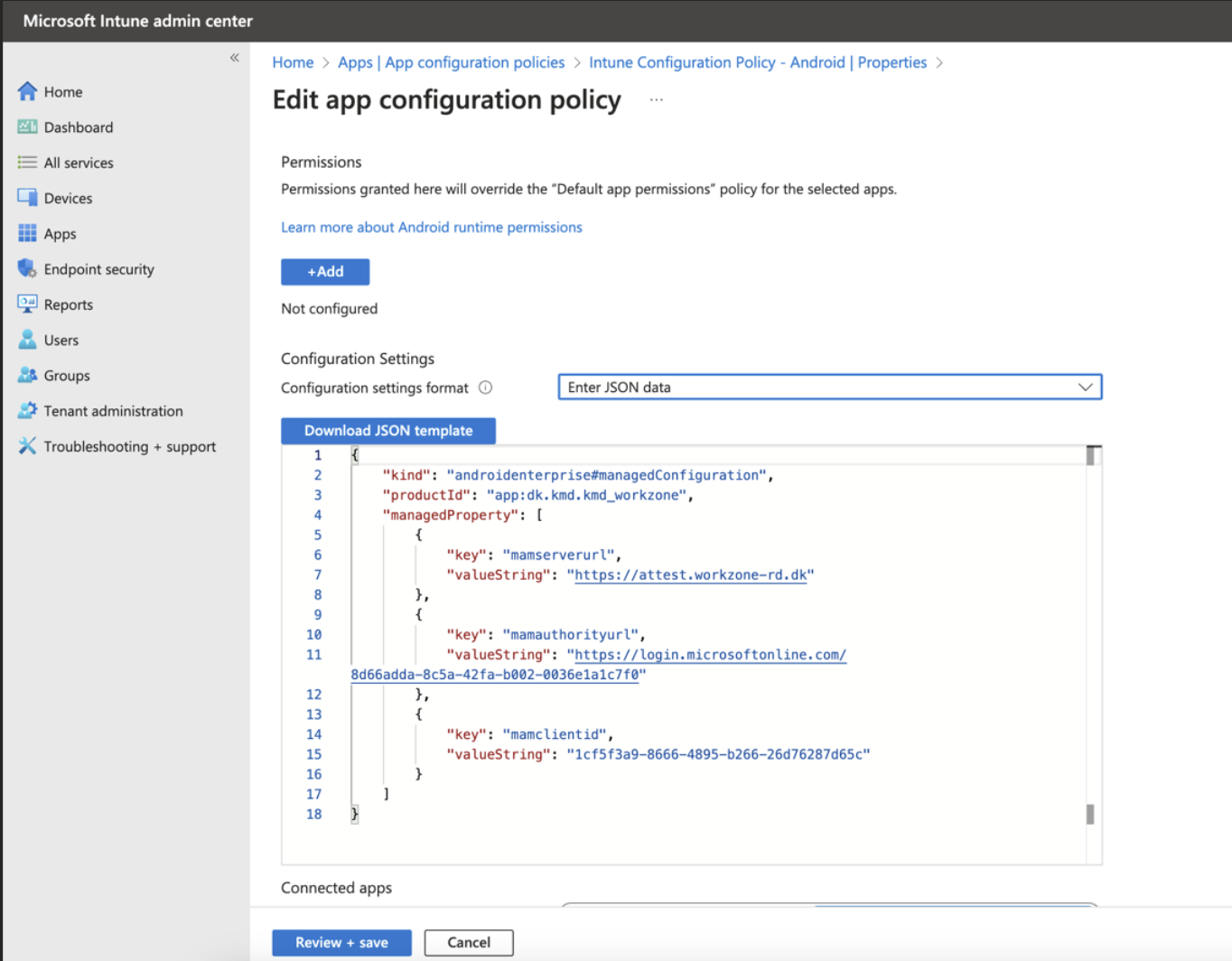
- Click Review + save.
- Click Save.
- Click Assignments, and select the Entra ID groups or users who should get WorkZone Mobile (New) in their company portal.
- Click Save.