Common processes
Common administrative processes are workflows that are common for many high-level governmental or administrative organizations, regardless of specific countries or cultures. For example, many governments contain procedures that define how legislature is created, how to request and obtain disclosure of information, how to submit and receive inquiries to the government, as well as financial budgeting, accounting, and auditing.
In Denmark, one example of an administrative workflow is how to filter, process, and answer questions submitted to the current government, often called a §20 question as it refers to paragraph 20 in the Danish parliament's rules of procedure. While the details of a §20 question process are specific to Denmark, the general workflow of responding to incoming queries are common to many democratic governments all over the world.
In general, a member of Parliament submits a written question directly to a minister and the minister has 6 days to provide an oral or written reply.
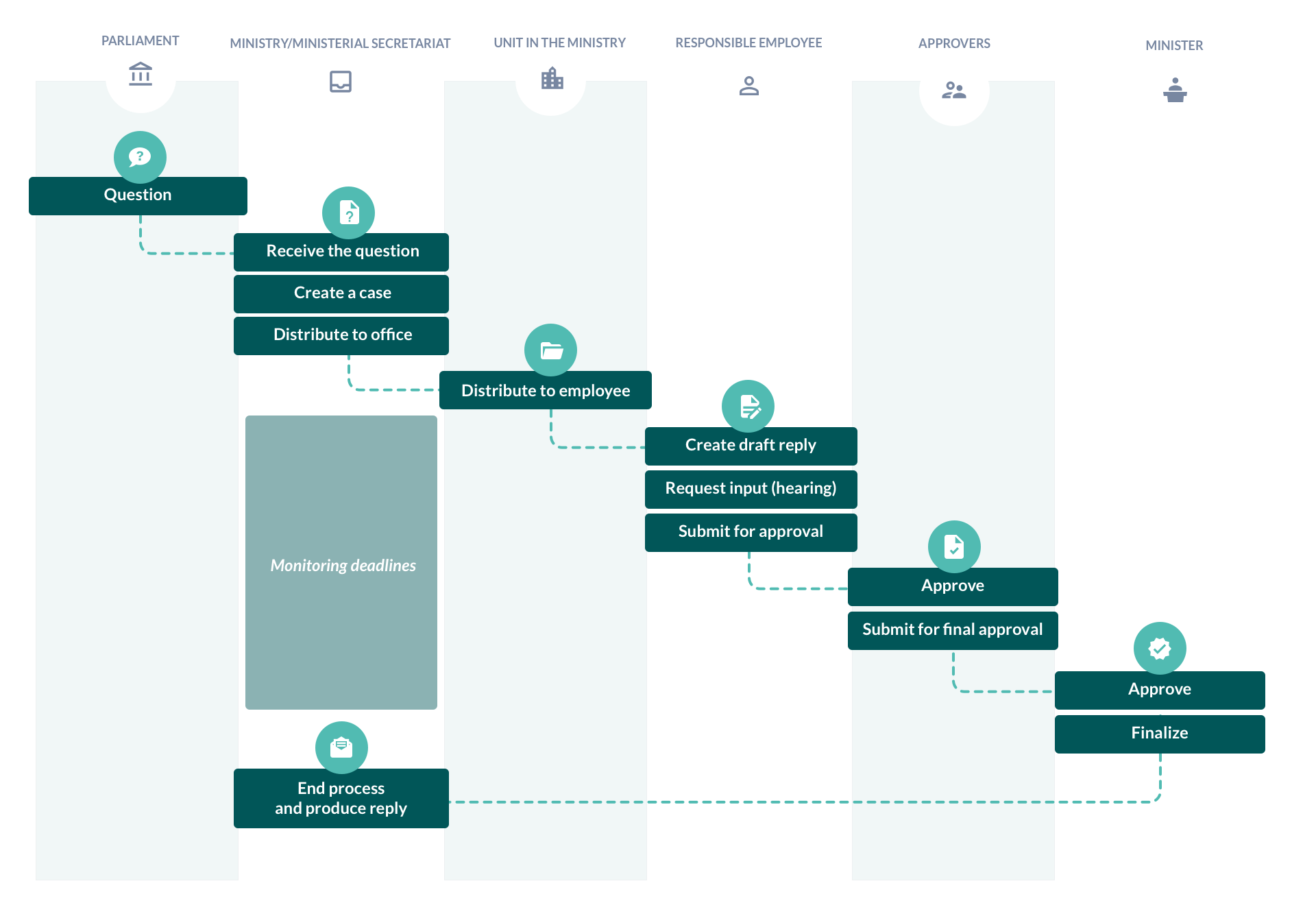
In WorkZone, this workflow can be broken down into the following steps:
 1. Receive and distribute the question
The submitted question must be registered correctly and distributed to the person or unit best suited to provide a satisfactory reply with the deadline of 6 days.
Receive the question
A ministry receives a question submitted from the Parliament when a member of Parliament wishes to ask the minister a question. The question is typically specific, brief, and indicates who is asking, what the question is, and whether a written or oral reply is requested. The question is often received as an email and each ministry has an email address set up to receive these questions. Typically, this is a function mailbox at the Ministerial Secretariat where multiple users may have access to the mailbox.
WorkZone Process can be set up to monitor such mailboxes.
Distribute the question
Upon receipt, the Ministerial Secretariat needs to determine who is best suited to frame a reply to the question. The Ministerial Secretariat starts a distribution process. The distribution is sent to the person or unit (typically a unit) in the Ministry that the Ministerial Secretariat expects are able to answer the question.
The unit in question receives the distribution from the Ministerial Secretariat. Typically, this is where a case is created for the work required to produce the reply. In some ministries, a case will already be created in the Ministerial Secretariat upon receipt, but often the case is created in the unit with the responsibility for producing the reply.
Sometimes the Ministerial Secretariat distributes the question to the wrong unit. The distribution will therefore be redistributed to another unit until there is a unit that "accepts" the task.
Once the unit has received and accepted the task, it is typically distributed to an employee of the unit, who is then responsible for drawing up the first draft of the reply and for creating a case for the purpose.
Distributions
Users can start a distribution process directly from the Outlook mailbox that received the question.
Deadlines
In the §20 example, the deadline should always be 6 days, but process deadlines can be set to any deadline that suits the organization's needs. Users can set the deadlines when they start a process and then change it later if needed.
Case creation
Users can either create new cases directly from the Outlook mailbox that received the question, or manually create one in WorkZone Client. If the mailbox is monitored, a case is automatically created based on the received email.
2. Prepare a draft reply
As part of the case handling, the employee may need to request input for the reply or put replies in hearings, for example, in other units in the Ministry or in one or more of the Ministry's agencies and/or institutions. This is a sub-process that will be completed before the reply draft is finalized.
Typically, the employee also searches in WorkZone for previous replies to ensure consistency in the Minister's reply to the Parliament.
3. Submit for approval
Once the employee has completed the draft for the reply, the reply can be submitted for approval as the reply must be sent to, reviewed, commented, edited and finally approved by a number of people. The submission is the formal way to secure and document an approval in WorkZone.
When creating the submission, the employee selects one or more approvers, for example the employee's own head of unit, relevant deputy permanent secretary, the Permanent Secretary (departementschef) and/or the Minister. Some ministries have joint secretariats, which extends the time required for approval, the total number of reviews and approvals as well as the final route to the Minister.
There is often a need for the approval from several stakeholders along the way (for example Public Relations, Legal departments, or simply several heads of unit or departments if they also have a responsibility for the reply). The employee sets up the relevant steps in the submission up to final approval by the Minister.
Select approvers
There may be steps in which all approvers must approve sequentially (only when the first approver has approved, the next approver approves the submission) and steps where the approvers must approve in parallel (all approvers receive the submission at the same time and once all have approved, the submission moves on to the next step).
Select documents for approval
The employee then selects the documents to be approved. Documents typically reside on the case, but documents from other cases can also be added. Supplementary documents from the case or other related cases can be added to the reply to provide additional information, briefing, or factual data to the main documents.
Apply deadlines
The employee specifies relevant deadlines for the submission and potentially also for each step of the submission, depending on the practice in the Ministry. Typically, the total deadline for submission is specified as the deadline for reply to the Parliament minus 1 day. The deadline is often specified in the distribution which the employee initially received from the Ministerial Secretariat.
Notify people about the submission
Finally, there may be a need to inform other persons in the organization about the submission along the way and in the case of various events. For example, when the submission reaches the Permanent Secretary, or if the submission is returned/rejected along the way.
It may be necessary to indicate who should receive the final approval once it has been approved by the Minister (for example, it may be the Ministerial Secretariat if they are responsible for sending the final reply answer to the Parliament).
When all this information is provided as requested, the submission process is started.
Starting the process
Users can create a process for the §20 question workflow (from preparation of the draft reply to sending the final version of the reply) in one process, with a final deadline and a number of steps where each step has its own deadline. The process can include as many steps as needed and it is possible to create templates with predefined steps and actors. The WorkZone process type to use is the Advanced submission process.
The employee who starts the submission process creates an advanced submission process that includes specification of the final process deadline (6 days after receiving the question), all the process steps with individual step deadlines, and persons or units set as approvers. In this example, the first step in the process may be to send documents to relevant stakeholders who can review and contribute to the draft reply in parallel, followed by one or more sequential steps where approvers can approve the reply one after the other.
Users can create Advanced submission templates for the reply process beforehand with the process steps and deadlines automatically updated to the deadline of the received question.
Templates for Advanced Submissions
Draft versioning
WorkZone contains draft versioning, which can assist users in saving and managing draft versions of their documents, enabling a better tracking of the incoming revision suggestions to the reply.
Draft versioning in WorkZone Office
Draft versioning in WorkZone Client
Searches
Users can perform simple or extensive searches for similar questions in existing cases or documents.
4. Run the submission
Once the submission is started, the approver(s) will be notified. If the process first step is sequential, the first approver will be notified. If it is a parallel step, all approvers will be notified.
The approvers each receive an email which contains all the relevant information. The approvers can open any documents and supplementary documents from the submission directly for editing.
Approvers can open and edit the document directly as well as save and close it. A new version of the document is then saved on the case, and subsequent approvers will see the corrected document when they open it from the submission.
After making corrections (if any), the approvers can select their desired action.
Typical actions can be:
-
Approve: The submission is forwarded to the next approver in a sequential process.
-
Conditional approval: The submission is forwarded to the next approver in a sequential process with the expectation that any mentioned issue must be rectified. The approver does not need to approve the document again.
-
Reject: Returns the submission to the employee who started the submission (case handler).
-
Reject to a previous approver: Returns the submission to the previous approver, for example, the permanent secretary wants the head of department to make changes.
-
Forward to another approver: The submission is forwarded to another approver. This can happen if the current approver is not the correct approver.
-
Skip: The submission is forwarded to the next approver. This can happen if the current approver doesn’t have time to process the submission wishes to pass the submission onwards.
The actions in the list above, as well as any document corrections, may be done any number of times, so that all approvers are given the opportunity to process the submission.
Note: Each approver can edit the submission when they are working on it, for example, they can change the next approves, update deadlines, change who should be informed, remove or add attached documents.
The actions that an approver can perform in WorkZone are described in more detail here:
5. Approval by the Permanent Secretary and the Minister
The end-to-end approval process in the ministries may vary as each ministry has its own workflow based on culture, previous experiences, legislation and common practices. The sections below delineate some possible processes.
Secretariat is part of the approval process
In some ministries, a secretariat (Ministerial and Management Secretariat) screens the submissions that are sent for approval to Permanent Secretaries and Ministers. As a result, submissions that have the Minister or the Permanent Secretary as the next approver will appear in the secretariat's inbox.
Only when the secretariat has registered the submission as a submission where the Permanent Secretary or Minister must approve, will it appear on their approval lists. In this case the secretariat is included as an approver before the Minister or the Permanent Secretary in the approval sequence.
The employee who starts the process must add the ministerial secretariat as an approver before the Minister in a sequential step.
Prioritization of approval tasks
Most Permanent Secretaries and some Ministers can always see all submissions for their approval. In this case, the secretariat ensures that the prioritization of approvals is as optimal and efficient as possible, arranging the required approvals in the order which the secretariat considers they should be dealt with.
The ministerial secretariat can order and reorder tasks as necessary in WorkZone.
Non-digital (paper-based) approval
Some ministers prefer to read, review and approve submission on paper. In this case, the secretariat prints the documents for approval for the Minister to approve.
Once the Minister has approved the submission on paper, the secretariat receives the paper-based submission with the Minister's written comments and then updates the digital submission on behalf of the Minister. The secretariat registers the Minister's action on the submission (approve, reject, etc.) on behalf of the Minister.
For the sake of traceability, the digital actions of the secretariat are registered in the database log.
In WorkZone, users can assign other users as delegates for them and in this situation, the secretariat is considered a delegate of the Minister.
Informal communication about a submission
Sometimes the Permanent Secretaries and Ministers need to ask clarification questions to the employee who is responsible for the reply, to some of the former approvers, or to some of the others in the organization.
The chat participants who have access to the submission and its material can have an informal dialogue about the submission by using WorkZone Chat. Users can chat about cases and documents in WorkZone Client and WorkZone Mobile (Legacy). Once a clarification has been reached, approvers can make any corrections to the submission and its materials, and perform the required action.
If the chat results in changes to the submission, the chat can be saved in a document on the case so that it is documented how the Ministry has come to its decision.
6. Finalize the process
Once the submission has been approved, the entire reply process can be finalized.
End the submission
When the Minister has submitted the final approval, the person specified as the recipient after final approval will be notified.
For §20 replies, it is typically the Ministerial Secretariat or an EIM secretariat, which ensures compliance with all formal requirements for answering §20 questions from the Parliament. The employee who started the submission is also notified. The receiving staff must acknowledge the receipt of the reply and thereby end the submission. The submission will no longer appear on lists of ongoing submissions.
The employee who started the advanced submission process (in WorkZone called the process owner) will automatically be notified of the approval and can then close the process. Depending on how the advanced submission process is defined, other employees and units can also be notified.
Start an advanced process (Notifications and advanced options)
Produce the final reply
The employee who receives the final approved submission can now produce the complete reply to the Parliament. The reply is an email message with relevant documents attached, and it is sent with digital signature according to the guidelines indicated in the question.
Registration of approved submission
Finally, the approved submission is registered as being the final execution of the task from the distribution that was initially received by the employee from the Ministerial Secretariat. This ensures consistency between the distributions made and their responses, including compliance with deadlines.