About ministerial processes
In the WorkZone Process Agency Package you can work with ministerial processes. You can start a ministerial process manually in the same way as any other type of process or it can be started automatically when a requisition is received from F2. It depends on how the ministerial process is set up for your organization.
Phases in the Ministerial process
The ministerial process is a phase process consisting of 4 phases.
| Phase | Description |
|---|---|
| Distribution | Phase for distribution of the process to a case handler. The distribution is automatically started with a deadline of +3 hours from now. |
| Processing | Phase for preparing the case. The phase usually includes manual tasks, but the tasks can be supported by the use of hearing and submission processes. |
| Submission | The deadline of the submission phase is usually specified from the point where a basis or an extended submission is sent for approval. The deadline is automatically set to – 2 days at 12:00 from the phase process deadline. See Submission processes (Basis) and Extended submission processes. |
| Approval | The final approval deadline, the deadline of the ministerial process, is handled manually. The only exception is if the approval phase is handled in a combination with the features of the F2 Integration package. |
You can see the phases and the current status for the ministerial process in the phase bar in the smarttasks and in the Processes overview.
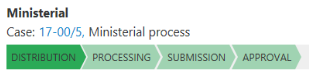
Deadlines
The deadlines are automatically suggested based on the process start but you can change the deadlines according to your needs.
- The deadline of the Submission phase is set to be 2 days from the main deadline of the Ministerial phase process at 12:00.
- If there are more than 3 hours until the main deadline of the Ministerial process, the Distribution phase deadline is automatically set to the process start + 3 hours.
- If the Ministerial process deadline is in the past, no phase deadlines are set. You can specify the deadlines manually.
The steps in a ministerial process
The steps below describe the standard setup of a ministerial process but your organization may have configured the ministerial process in a different way in order to adapt to your organization's specific workflow. For information about configuration options, see Configure Ministerial Process in the WorkZone Process Administrator guide.
The process start
The process owner starts a ministerial process with one or more reference documents, specifies a deadline, and adds a case responsible who will accept the case responsibility.
When the process owner starts the process, a task is sent to the case responsible. The case responsible can either accept, reject, or forward the task. Before responding, the case responsible can change the process, for example by adding or removing contributors and documents, see Manage documents and actors on a task. When the case responsible accepts, he or she also becomes the case handler on the case.
The case responsible responds
When the process owner starts the process, the case responsible is asked to respond to the task and the flow of the process depends on the response.
- If a case responsible rejects the process, it is sent back to the process owner who can then edit the document, change the contributors, or restart the process with another case responsible.
- If the case responsible accepts the process, the task is sent to all contributors (if any).
- The process owner is notified that the ministerial process has been accepted.
- If a case responsible has not responded to the task before the process deadline, a smarttask is sent to the process owner (see No response by deadline).
The contributors respond
Once the case responsible has accepted the role as a case responsible, tasks are sent automatically to all contributors. The employees or organizational units can either accept or reject the role as contributor or forward the task to someone else. When all contributors have replied and the distribution process is complete. The process owner is notified that the distribution is completed and the ministerial process moves to the Processing phase.
Submit for approval
When the processing phase is complete either manually or handled by other processes, for example a hearing process, the process owner can start the submission for approval. See Start a basis submission process or Start an extended submission. The ministerial process remains in the Processing phase. Documents that have been added to the ministerial process in the Distribution phase are suggested as documents for approval when the process owner starts the submission process.
Approval
Tasks are sent to the approvers who were specified in the extended submission process. The approvers can either Respond to an extended or an advanced submission, Respond to an extended or an advanced submission, Respond to an extended or an advanced submission, Reject to, Respond to an extended or an advanced submission, or Respond to an extended or an advanced submission. Once approved, the process owner is notified and can close the extended submission process. The ministerial process moves to the next phase, which is the Submission phase.
Finalize the ministerial process
To finalize the process, the process owner closes submission process, and the ministerial process moves to the next phase, which is the Approval phase, and completes the ministerial process.
The process history
The process responses are logged in the process history of each of the sub processes in the ministerial process such as the extended distribution process and the extended submission process.
When a process is completed, a process history document is created. It is saved on the case as a case document (a PDF document with the document type PROHIST, History), for example Distribution (Extended): Ministerial process.