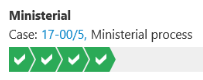
Start a ministerial process
This topic describes the steps that take place in the different phases of the ministerial process.
Start a ministerial process
When you start a ministerial process, you become the process owner. As the process owner , you must enter information such as a case responsible and contributors , and reference documents.
- Open, for example, a case from the Cases & Documents folder in Outlook, from WorkZone Client, or WorkZone One.
- Click Process on the ribbon.
- Click Ministerial. The case title that is applied in the Ministerial Processing dialog box reflects the title of the case. This case title is inserted automatically in the Title field but you can change the title.
-
Select a Deadline. If the Deadline field is already filled in with a deadline, it is because your organization has predefined a default deadline for the process. You can change deadline.
-
When you start the process the first time, the deadline is set to midnight 00:00.
-
If you click
 Delete in the Deadline field, the process will have no deadline.
-
- Optionally, in the Priority field, set the priority to High or Low. Normal is the default value.
- In the Description field, enter a description of the ministerial process.
- Select a case responsible. Click in the Select case responsible field and select a contact from the list. The contact can be either a person, for example, a case handler, or an organizational unit.
- Select the document or documents that support the case. Click in the Reference documents field and select one or more documents from the list, for example, a case document and the saved email. The documents that appear on the list depend on your access rights.
- Optionally, select one or more contributors. Click in the Contributors field and select one or more contributors from the list. A contributor can be either a person, for example, a case handler, or an organizational unit.
- Click Start.
If you start the process from your Outlook inbox and the email has been saved on multiple cases, you can select a case from a list of these cases.
The process is now in the Distribution phase and the distribution process starts.
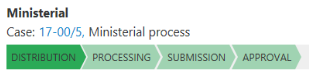
- The case responsible receives a smarttask and is asked to accept the case responsibility. The case responsible can make changes to the process before accepting the case responsibility.
- The contributors receive a smarttask and are asked to accept the distributor role.
When all contributors of the distribution precess have replied, the ministerial process moves to the Processing phase.
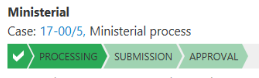
During the processing phase, the case handler works with the case and prepares it for approval.
Submit for approval
Once the Processing phase is completed, the next step is to start a submission process (Basis or Extended) in order to send the case for approval.
You can start the submission from Outlook, from the Office applications, or WorkZone Client.
- Click Process > Submission (Basis) or Submission (Extended).
See Start a basis submission process or Start an extended submission.
The ministerial process now moves to the Submission phase and an email is sent to the approver.
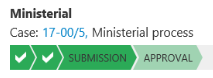
When the submission process reaches a specific approver, the ministerial process moves to the Approval phase. The approver may be an employee or an organizational unit, which has been assigned a specific process role.
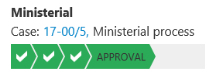
Once, the approver has approved the case, the process owner is notified and can close the submission process.
Close the ministerial process
To close the ministerial process, move it forward once.
- In the Processes overview, right-click on the ministerial process, and then click Move forward.