In Interact you have the opportunity to create and maintain data sources that you want to use when designing the dialogues. This is done in the source editor. The data sources are internal data sources – meaning sources that are created within Interact.

We distinguish between global and local data sources as described in more detail
To create a new data source, click on New.
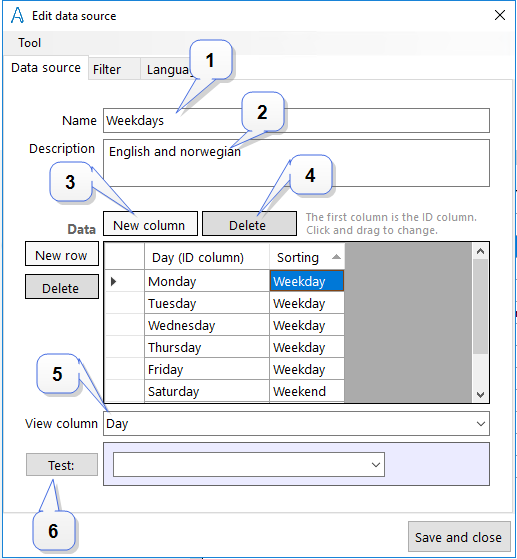
- Give the data source a name (1) and, if necessary, a description(2).
- Click on New column (3) to create a column. The first column automatically becomes the ID column. The ID column can be used to make advanced logic in the dialogue. Otherwise, one does not relate to it.
- Enter text in the first row and press the Tab key or the New row button to move to the next row. To delete a row, click on Delete row or mark the row and click on the Delete button on the keyboard.
- To add a new column, select New column and enter the name of the column.
- To change the name of the column, right click and enter a new name.
- To delete the column, click on the column and press Delete column (4).
- In the dropdown list View column (5), select what column should be displayed in a radio button list, check box list or dropdown list.
- If you press Test (6), you will see a preview of how this will be presented and the related ID.
Filter your data sources
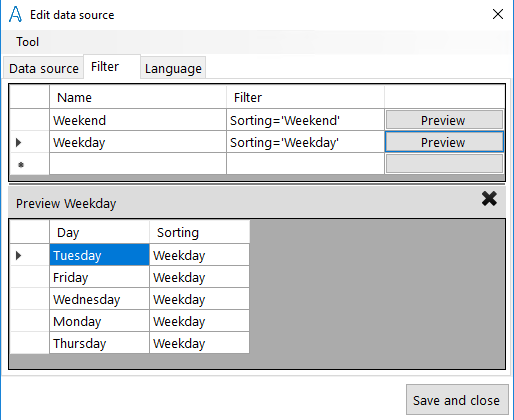
In the Data source editor, you can create sub-data sources based on custom filters for existing data sources. Click on the Filter tab.
You create a name of data sources in the column Name and enter in the Filter column how you want to filter out data.
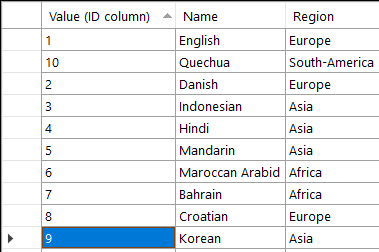
The example below is based on an existing data source of countries containing:
- Value (value field that serves as an ID column).
- Name: Name of language.
- Region: The continent to which they belong.
 Example 1 - sort out all countries located in Europe
Use the filter to filter out all languages spoken in Europe. In the filter column, set Region=’Europe’. Region is the name of the column in the existing data source, and Europe is a value in the Region column.
In the filter column you can use SQL queries. We want to show some examples of cases that might be useful. The various examples are based on the data source below. The data source consists of three columns.
Example - 2 Retrieve all kindergartens which belong to the Merton area and are of the type Municipal and Private kindergartens
The first column (ID column) contains all kindergartens in a municipality. It is the ID column displayed in the dialogue. Column 2 contains the area in which the individual kindergarten is located. The third column contains the type of kindergarten – Private, municipal or private day care.
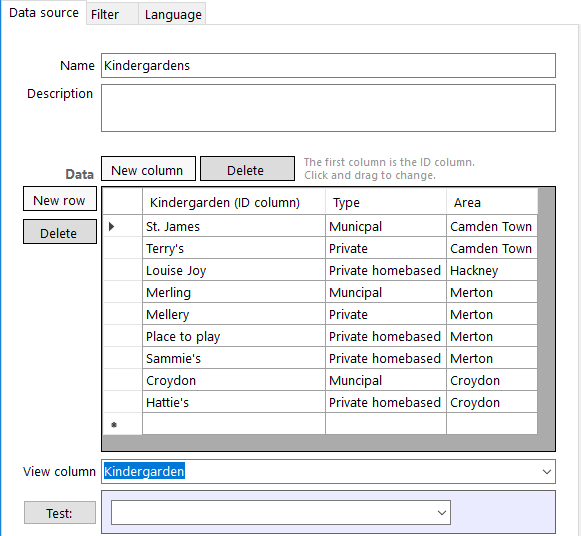
Area = ('Merton') and Type in ('Private homebased', 'Municipal')
A query saying what should NOT be retrieved – in this case «Private homebased» - could also be set up. Then the query would have been as follows:
Area = ('Merton') and Type not in ('Private homebased')
Example 3 - Retrieve all kindergartens with the name St. James in the name
Kindergarten like =(%St. James%’)
Here the result would be e.g. all kindergarten that has St. James as part of the name.
Example 4 - Retrieve all kindergartens except Terry's, Merling and Sammie's
Kindergarten not in ('Terry's','Merling','Sammie's')
Operators
In these queries, various operators and expressions have been used to retrieve the requested data. The following contains a short description of this.
| and | Select several columns, such as Area and Type in example 1 |
| = | Exact match |
| like | If you want to find a name containing a text string. Can be used in combination with %. …. like =(‘%private%’) |
| in | Want a selection that contains e.g. Private homebased |
| not in | Want a selection that does NOT contain e.g. Private homebased |
Import/export of data sources
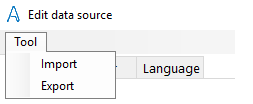
Select New to create a data source to which you can import data, and create the columns which the source you need to import consists of. Then click on Tool and Import to import data sources.
Note!
1. The data source to be imported must be stored as a .csv file, be semicoloned and in UTF8 format, otherwise Interact will not handle æ, ø and å. The mostly used program to create a .csv file is Excel.
2. The columns in the data source must be created in advance before importing. You will get a notification if you try to import without any columns having been created.
Note! When exported, the file will be saved in .csv format.
Use of data sources
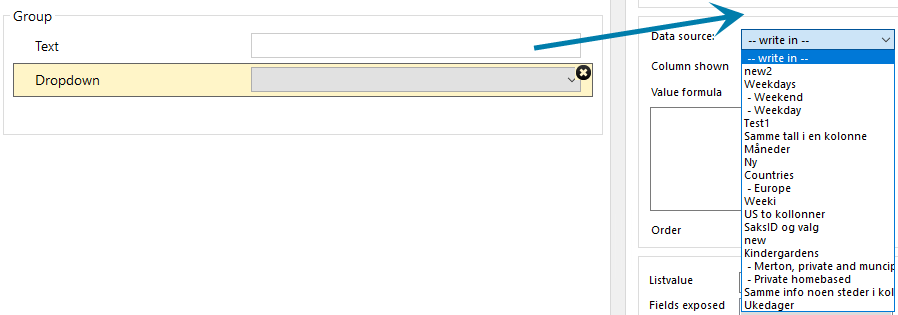
Translate into desired languages
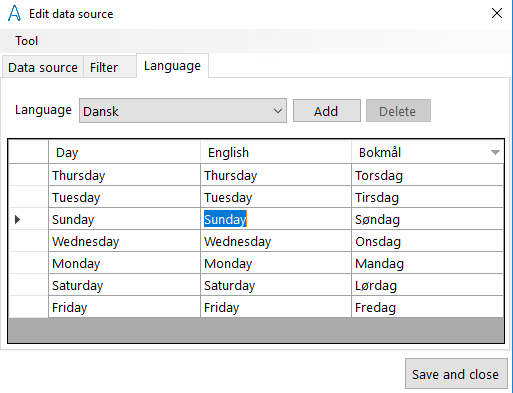
Custom elements can be translated into the desired languages. When you translate a custom item into the specified language, then you do not have to translate it again when you use it in a dialogue translated to that language. Click on the Language tab at the top of the menu bar to translate into the desired language.
How to proceed:
- Select a language from the dropdown list and click on Add.
- Repeat this action for every language you want to translate into.
- Fill in translation in the columns.
- You can delete a translation to a language by marking the column and clicking Delete.
- Click on Save and close when the translation is done.