Clients are free to choose which languages should be available in Interact, but new languages must be activated by your supplier.
To translate a dialogue, you must translate different parts of the dialogue:
Translate content of dialogues

To enter translations when in Design mode, click the Language button in the menu. When you do so, the button Add translation appears. Click this button to choose between different activated languages.
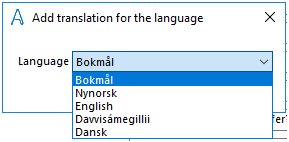
Start by adding the translation in the original language and then click on Add translation again to add the language to which the dialogue is to be translated. In the example below, the dialogue in English has been translated into Bokmål, Nynorsk and Danish:
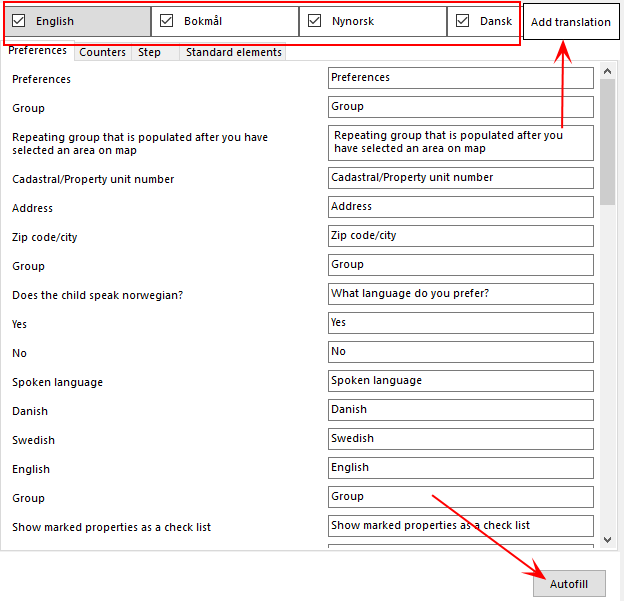
The labels from the original dialogue appears on the left side and you write the translation on the right side. You can also double click on the label to the left to copy the label to the text box on the right side, or you can use the button Autofill which fills in all texts from all tabs in the original language.
Translate receipts used in this dialogue
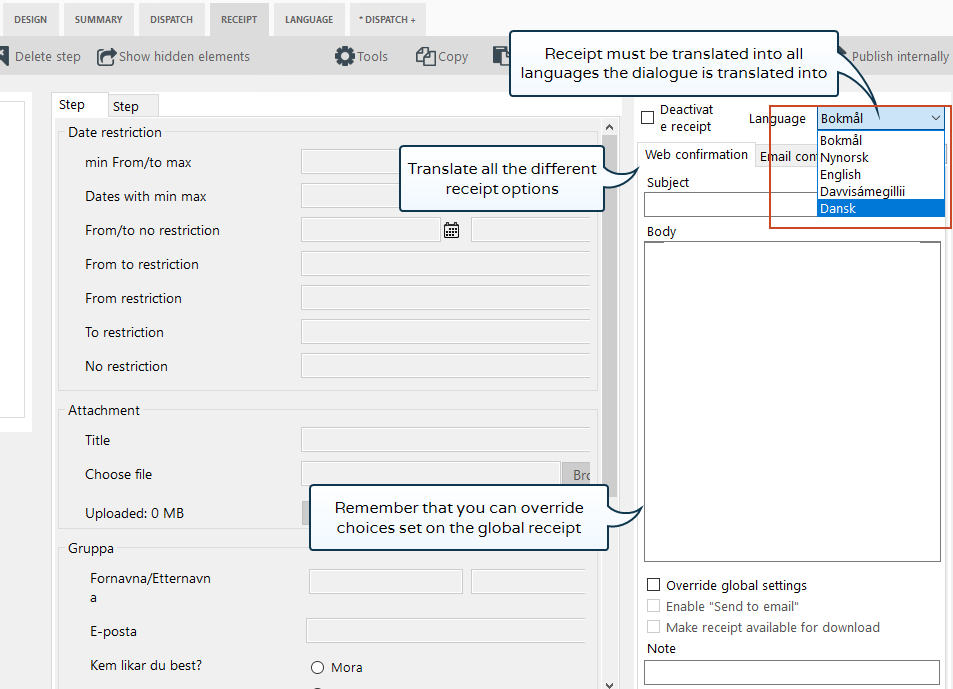
You enter translations for receipt when you are in build mode by clicking on the Receipt tab in the menu at the top. Translate all types of receipts into all languages you have translated the dialogue into.
Translate title of dialogue
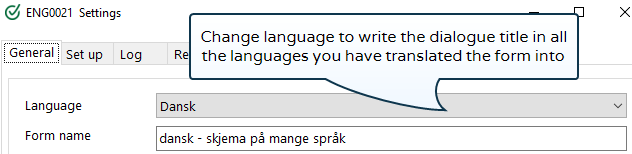
Go to the dialogue overview and click on Properties for dialogue you have just translated. Here you must now add the title of the dialogue in the different languages you translated the dialogue into. First change the language selection, then enter the title of the selected language.
Test translation of form
Once you have translated, save by pressing Save or use Save and close. To test the different languages of the dialogue, you must publish the dialogue and test internally or externally. Open the dialogue in the browser, and you will be able to change the dialogue language by using the language selector at the top right of the page.
Note that the information field and help text contain HTML. The HTML tags must be filled in manually in the translation (alternatively, click/double click in the field to edit existing text).
Note that the translation of data sources is made in the Data source editor. The same applies to Custom items. These are translated in the Custom items editor. .
In connection with export and import of dialogues, translations will be available in the new dialogue.
 See also